Manage your account »

If you've already purchased a ForeFlight Subscription and want to start using a new iPhone or iPad, you need to sign into your ForeFlight Account.

[iPad] [iPhone] [FAQs]

Signing in on an iPad

Step 1

Step 2

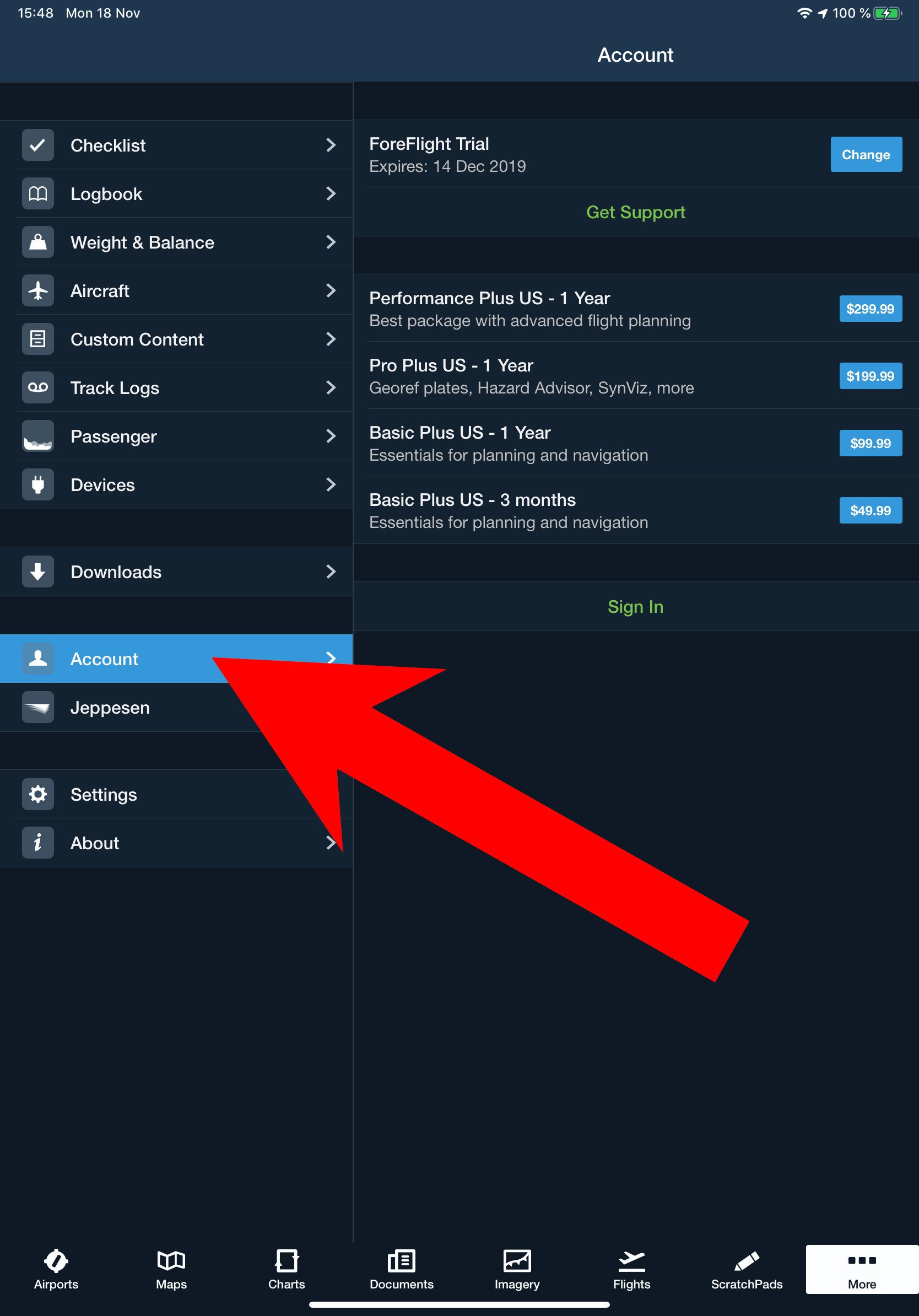
Tap 'More' Tap 'Accounts'

Tap 'More' in the lower black bar.

Tap 'Accounts'

Step 3

Step 4

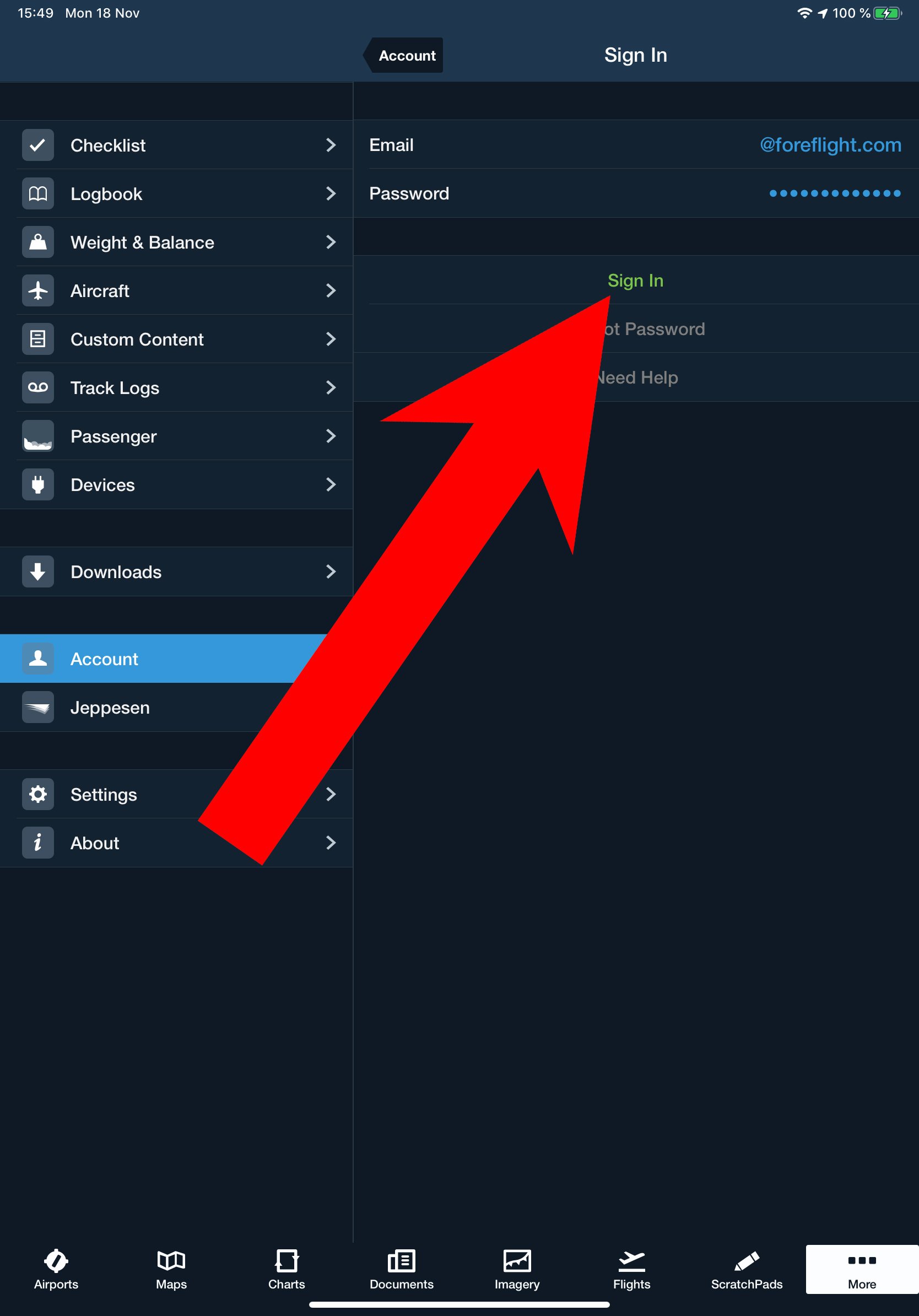
Tap 'ForeFlight' Sign into your ForeFlight Account

Under 'Account Logins',
tap 'ForeFlight'.

Sign in with your ForeFlight account info.


Signing in on an iPhone

Step 1

Step 2

Step 3

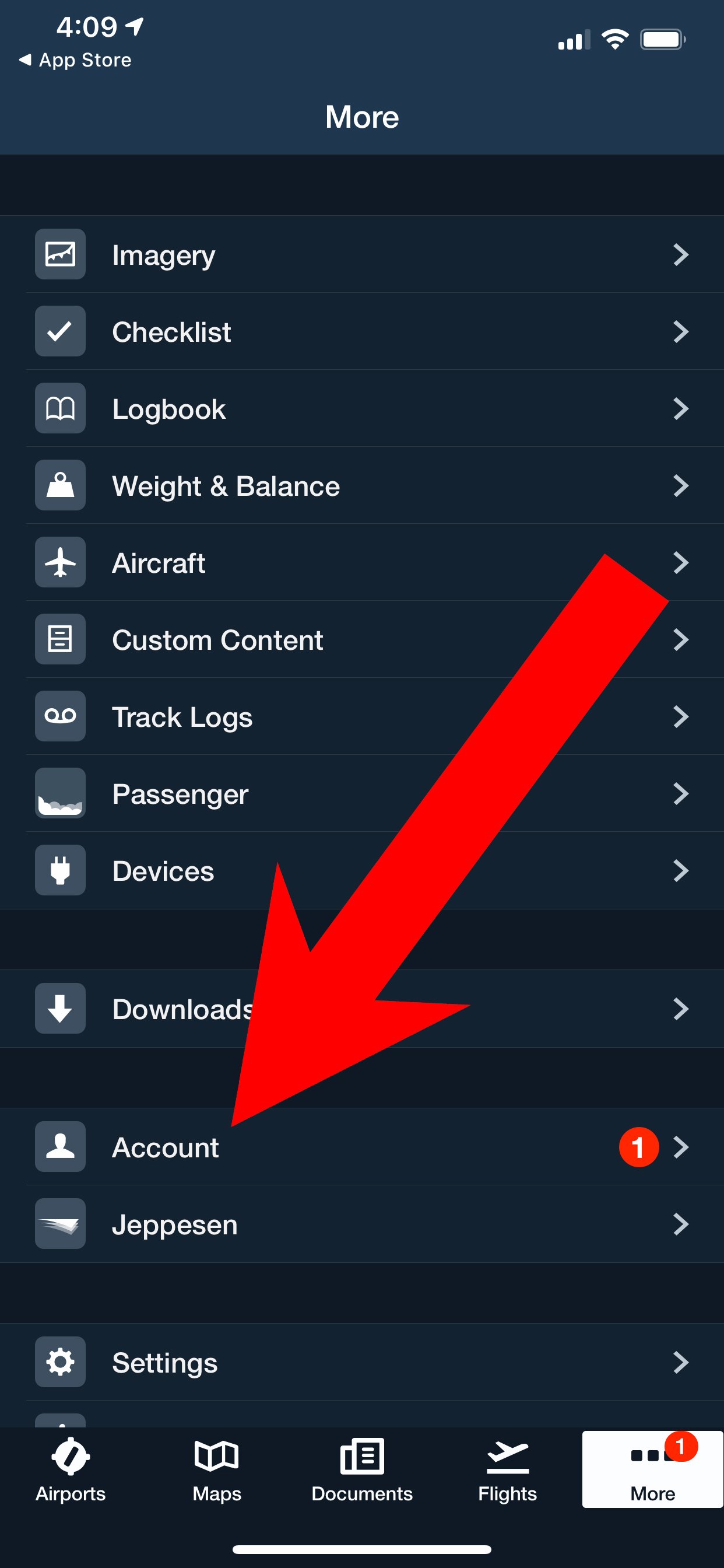
Tap 'Accounts' Tap 'ForeFlight' Sign into your ForeFlight Account

Tap 'Accounts' icon.

Under 'Account Logins',
tap 'ForeFlight'.

Tap 'Yes, I have an account' and follow instructions for signing in.

What if it says "Account In Use"?

You can use your subscription simultaneously on one iPhone and one iPad. If you're upgrading to a new device, you need to sign out on your old device beforehand. Click here for instructions on signing out of your account.

If you've already retired your old device and had not logged out, send us an email and we'll unhook it from your account.

What if I forgot my password?

On the sign in screen, enter your email address and tap the "Forgot Password" button at the bottom. We'll send you an email with your password.

Make sure to use the email address that you purchased the ForeFlight Account under. You should have received an email at the time of your initial purchase with your email address and password.

How do I change my password?

Once you are signed in, you can change your password any time. Just return to 'Accounts', tap on your ForeFlight Account at the bottom under 'Account Logins', and then press the 'Change Password' button.


Register for the newsletter to get the latest updates